Claude Code for Dummies
What Claude Code is, the friendliest way to install it through VS Code, and why you do not need to be a developer to get real value from it.
First, what is Claude?
Before we talk about Claude Code, it helps to know what Claude is. Claude is an AI assistant built by a company called Anthropic. You can chat with it the same way you would text a very capable colleague. You ask a question, it answers. You give it a task, it works through it. Most people first meet Claude through the chat window on the web or the mobile app, and for a lot of everyday work that is all you need.
So what is Claude Code?
Claude Code is a different way of using that same intelligence. Instead of living in a chat window, Claude Code sits right inside the tools you build with and works directly on your files. It can read a whole project, make changes, run commands, and show you exactly what it did before anything is saved. Think of it less as a chat and more as an assistant that rolls up its sleeves and gets into the actual work with you.
The name has the word Code in it, and that scares people off. Hold that thought. We will come back to it, because it matters less than you think.
The many ways to install it, and the one we actually use
There is more than one way to get Claude Code running. Some people run it purely from the terminal, that black window full of typed commands. Others wire it into different editors. At Zenith Forge, the way we install it and the way we recommend to almost everyone is through Visual Studio Code, usually just called VS Code.
We prefer this route for one simple reason. It is friendlier. The terminal is powerful, but it asks you to remember commands and type everything by hand, which is a lot to ask of someone who does not write code for a living. VS Code gives you buttons, panels, and clear visual changes you can approve with a click. You see what Claude wants to do, you say yes or no, and you move on. No memorising commands, no guesswork.
Installing Claude Code in VS Code
If you already have VS Code on your computer, the whole thing takes about two minutes.
- Open VS Code.
- Open the Extensions panel. On a Mac press Cmd + Shift + X. On Windows or Linux press Ctrl + Shift + X.
- In the search box, type Claude Code.
- Find the one published by Anthropic and click Install.
- Once it finishes, a small spark icon appears in the top right corner of your editor whenever you have a file open. That icon is how you open Claude.
- The first time you click it, you will be asked to sign in with your Anthropic account. After that, you are ready.
One thing worth knowing upfront. Claude Code is not available on the free plan. You need a paid plan such as Claude Pro to use it, so check the current plans on Anthropic's site before you start.
If you ever prefer the terminal route instead, you can install it with a single command:
npm install -g @anthropic-ai/claude-code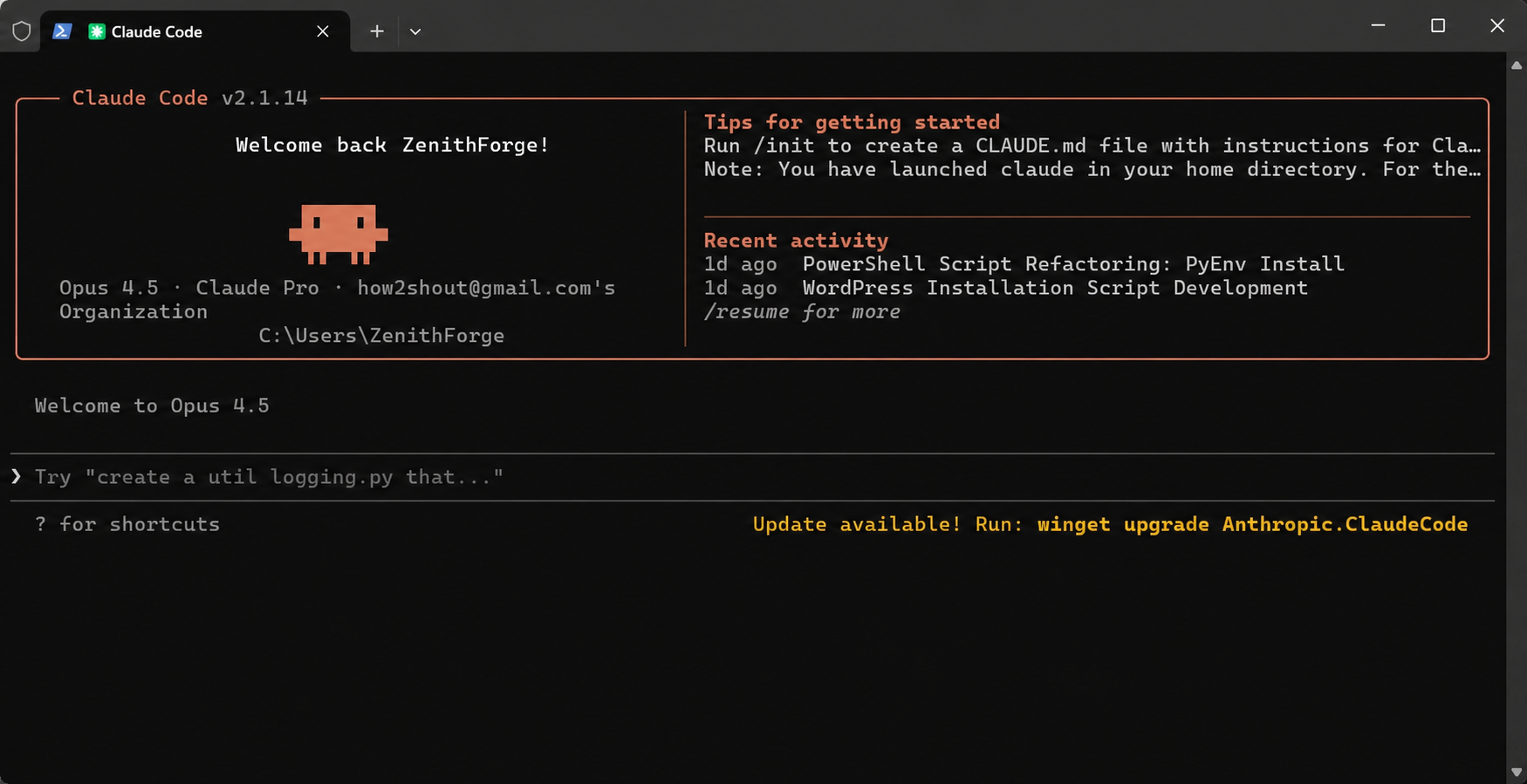
Then type claude in your terminal to start. But for most people, the VS Code extension is the gentler path.
But I am not technical. Is this for me?
Yes. This is the part people get wrong. Because the tool has Code in the name, everyone assumes you need to be a developer to touch it. You do not.
Claude Code is very good at plain, nontechnical tasks. A few things you can ask it to do without writing a single line of code:
- Read through a long folder of documents and summarise what is inside.
- Rename dozens of files in one go following a rule you describe in plain English.
- Organise a messy folder into tidy, sensibly named subfolders.
- Turn a rough set of notes into a clean, formatted document.
- Pull specific information out of a spreadsheet and reshape it the way you want.
- Fill out a repetitive form or template over and over with different details.
You describe what you want in normal language. Claude does the work and shows you the result before saving anything. You stay in control the entire time.
That is really the whole point. Claude Code is not a wall you have to be technical enough to climb. It is a capable assistant that happens to be excellent at fiddly, repetitive jobs, whether those jobs involve code or not.